
(3) Connecting to EC2 and Installing Docker, Docker-compose on the Server
In the previous article, we have already purchased a server and created a key pair and security group. In this article, we will use the key pair to connect to the server.
一、Connect server with SSH
Download the SSH client, Termius is used as a demonstration here. Open the Termius official website, download and install it.
1、 create ssh host
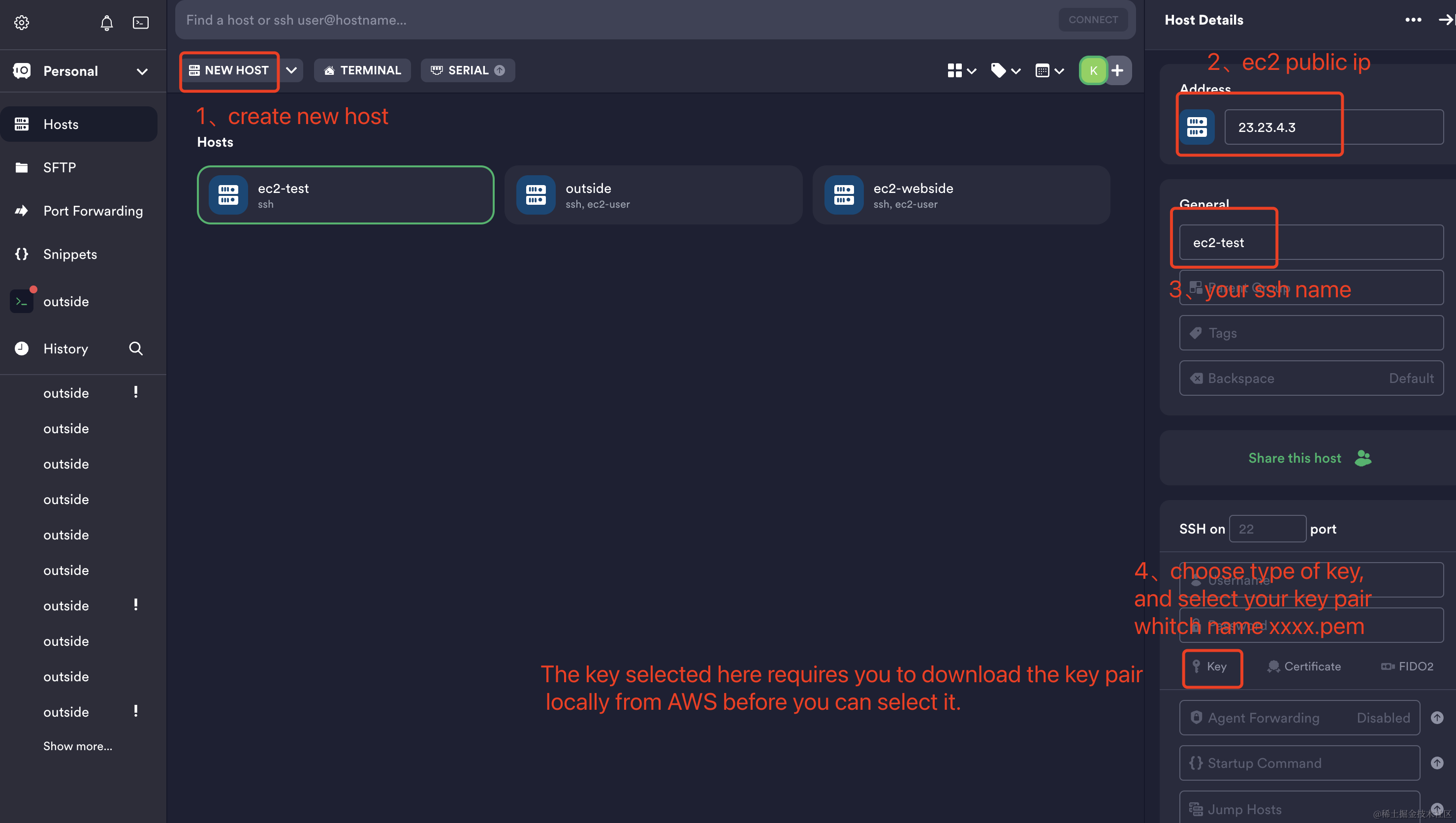
2、After the creation is completed, you can click on the ec2-test you just created to connect to your server.
The connection is successful as shown in the figure below
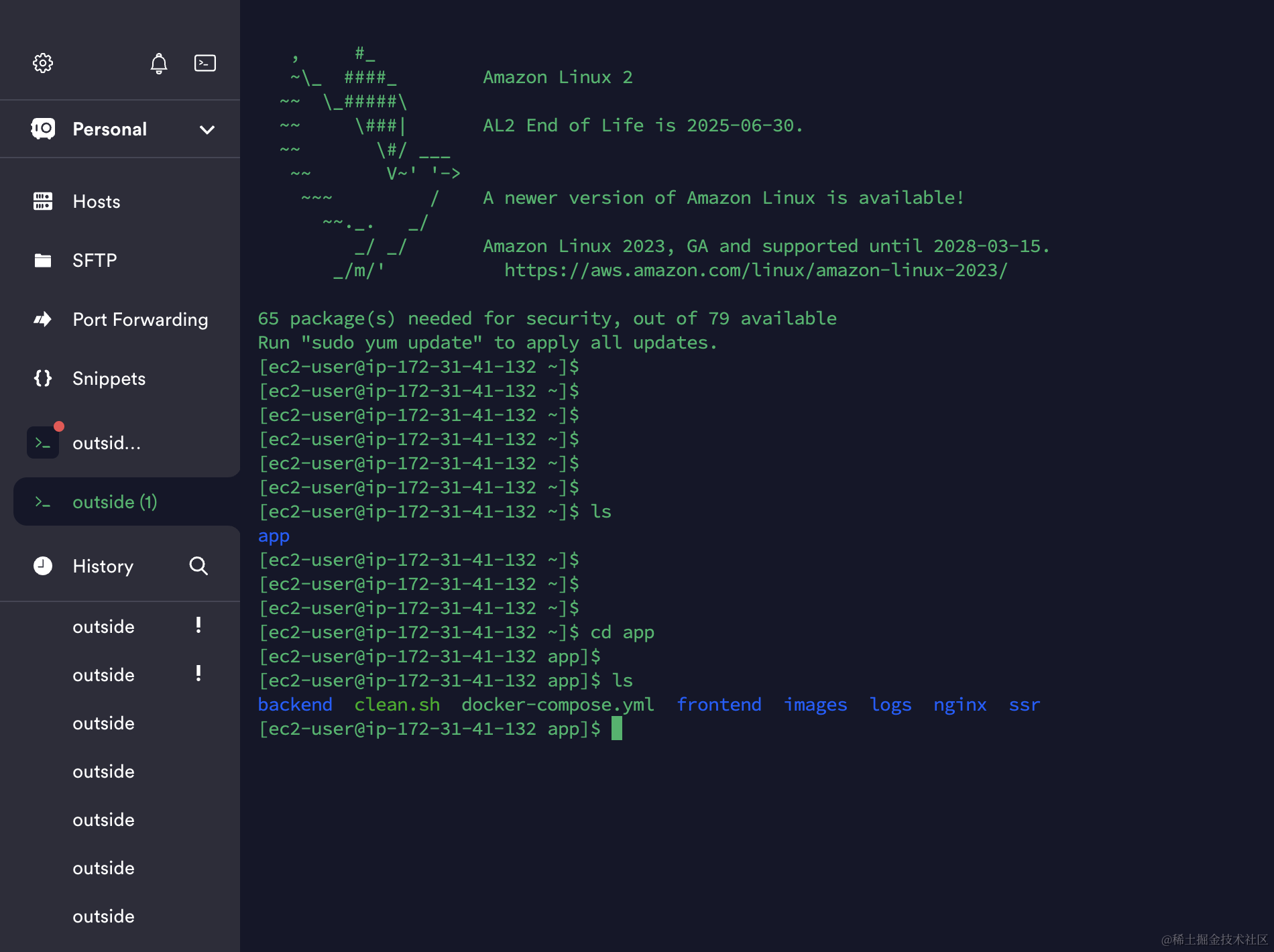
二、Install Docker
1、Enter the following command in the server terminal
1.1、
sudo yum update -y
1.2、Update installed packages and package cache on the instance
For Amazon Linux 2, run the following command: (Since we installed Linux 2, we executed this command)
sudo amazon-linux-extras install docker
For Amazon Linux 2023, run the following command:
sudo yum install -y docker
1.3、start Docker
sudo service docker start
1.4、Add ec2-user to the docker group so that you can execute Docker commands without using sudo.(ec2-user is your username of aws ec2)
sudo usermod -a -G docker ec2-user
1.5、Accept the new docker group permissions by logging out and logging back in. To do this, close the current SSH terminal window and reconnect to the instance in a new terminal window. Your new SSH session should have the appropriate docker group permissions.
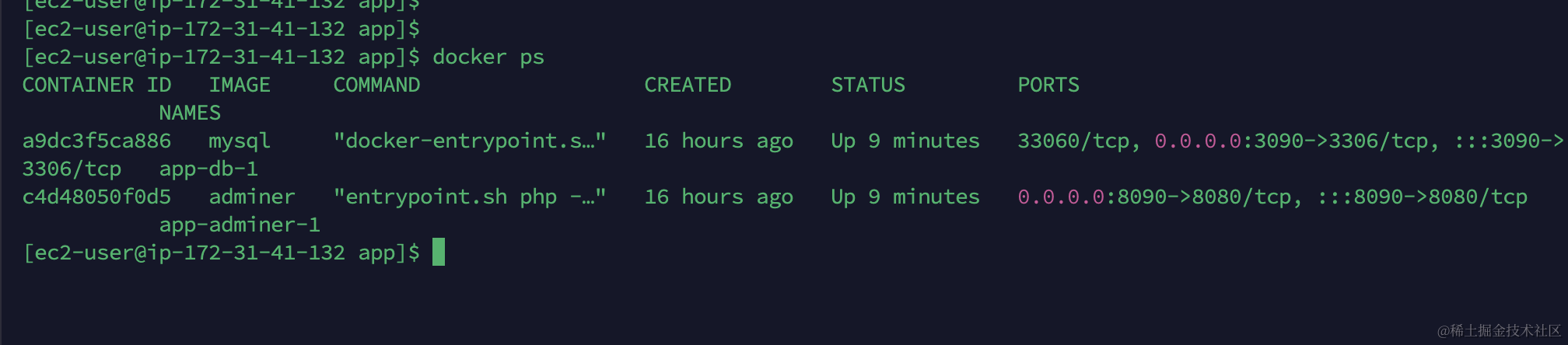
1.6、 Verify if ec2-user can run Docker commands without using sudo. Docker is considered installed successfully as shown in the following figure.
docker ps
As shown in the figure below, even if docker is installed successfully
三、Install Docker compose
1.1、run command
curl -L https://github.com/docker/compose/releases/latest/download/docker-compose-$(uname -s)-$(uname -m) -o /usr/local/bin/docker-compose
1.2、Add execution permissions
chmod +x /usr/local/bin/docker-compose
1.3、If you are prompted that the docker-compose command cannot be found, execute the following statement
ln -s /usr/local/bin/docker-compose /usr/bin/docker-compose
Why do we need to install Docker compose?
Because typically, a complete web service includes frontend, backend, DB, redis, nginx, and other services. If you only have Docker, you would need to use docker commands to create and manage each of these services separately, resulting in a lot of repetitive tasks. By using Docker compose, you can deploy all of these services with a single command using the docker-compose.yml file.
Next article: Deploy a complete set of web services through Docker compose